
STEP 1 - FINISH DcmBurner INSTALLATION
Complete the DcmBurner installation before proceeding with Epson configuration.
Complete the DcmBurner installation before proceeding with Epson configuration.
1. Epson Total Disc Maker
2. Epson Total Disc Setup
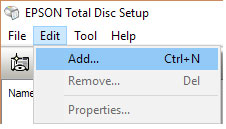
Register your printer as above.
3. Epson TD Bridge
During Epson TDBridge installation, change the default watch folder path to - C:\dcmburner\jobs. Download and install Epson TDBridge, always check Epson website for latest versions. Epson PP-50 Robot require TD Bridge activation. Activate TD Bridge by clicking 'DiscProducerActivationTool.exe' in the TD Bridge installation directory.
4. Install Epson Total Disc Monitor
After all installations, you should have these five entries in Windows startup menu.
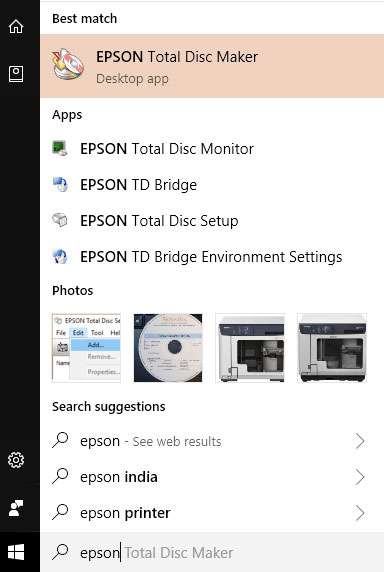
If your PC ask for a reboot, do it.
1. Check TD Bridge Settings
Open Epson TD Bridge Environment settings and check the default, input/out/stacker selections.
2. Configure Disc Rules
See the disc type & bin settings in DicomBurn 'Disc Rules' (middle screen). Same settings must be applied in the stacker selections or vise-verse.
3. Check Monitor Status
Open Epson Total Disc Monitor and see if the message says it is ready for publishing.
4. Create a Job
Open Epson Total Disc Maker, create a Job for the printer, make sure to add few files for burning and choose a label file for printing.
5. Burn to Printer
Burn it to the new printer.
6. Verify Result
Check the CD content and the label.
7. Fix Issues if Needed
If all is not good, fix the printer/printing parameters, ink, lid, whatever to get the pending job done.
1. Keep Monitor Running
Keep the Epson Total Disc Monitor running, this will give the real time progress/error updates.
2. Configure Media Target
On DcmBurner Setting screen select Media Config Option Media target as Epson CD or Epson DVD based on the Epson TD Bridge Environment settings, And put CD or DVDs accordingly into the printer.
3. Push Studies
Now, push some studies to DcmBurner, and watch it.
If all is good, you can change the DcmBurner default label file to your facility name, logo, a new design etc.
The default label file is in C:\dcmburner\tools\epsoncdlabel.tdd. Backup epsoncdlabel.tdd file, And copy it, Then open it in Epson Total Disc Maker, and do the changes, If want use new tdd file, You can change On DcmBurner Setting screen select Media Config Option and change Label File Path field.
DcmBurner installation Guide, software basic Settings.
Explore Program→