Back to Support

How to Trial DcmBurner

STEP 1 - Download DcmBurner Software

1. Open the Download Page

Open the webpage https://www.dcmburner.com/trial

2. Enter Your Information

Enter your email and other required information.

3. Click Download Button

Click the "Download For Free" button.

4. Wait for Download

Wait for a moment, and the browser will automatically start downloading the software.
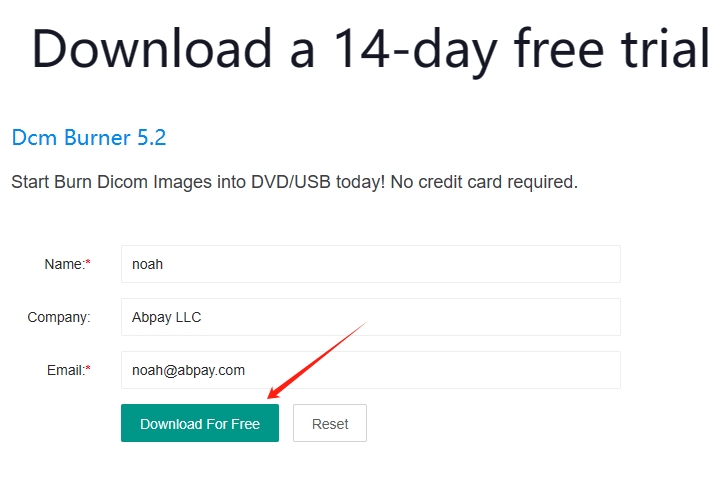
Download DcmBurner

STEP 2 - Installation

1. Run the Installer

Once the download is complete, double-click the downloaded file named "dcmburnersetup_trail.exe".

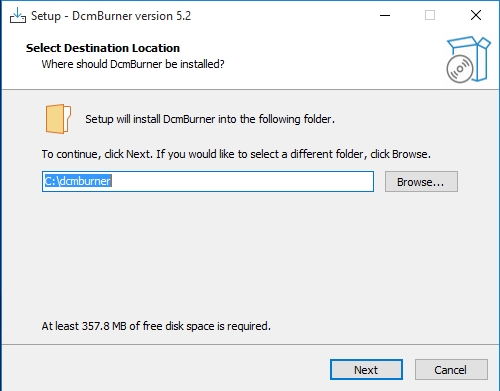
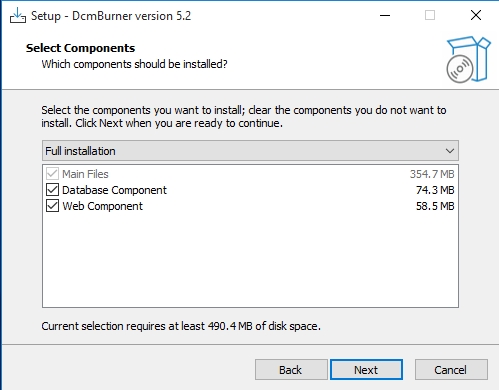
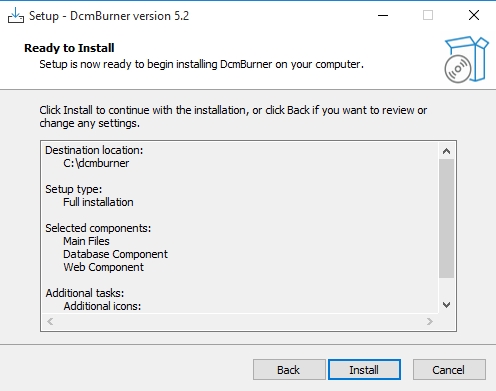
2. Follow Installation Prompts

Follow the on-screen prompts to proceed with the installation.

Basic Setup

Basic Setup

Basic Setup

STEP 3 - Obtain License

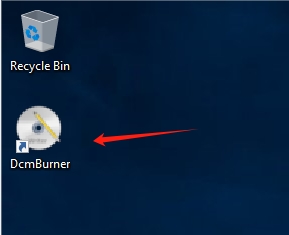
1. Open DcmBurner

Open DcmBurner application.

Open DcmBurner

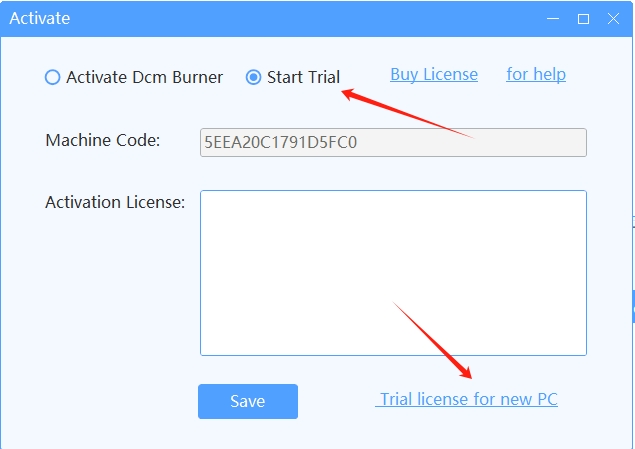
2. Select Start Trial

The first time you open DcmBurner, an activation dialog will automatically appear. Select "Start Trial".

3. Get Trial License

Click on the "Trial license for new PC" button to be redirected to the page for obtaining the activation code.

Active Dialog

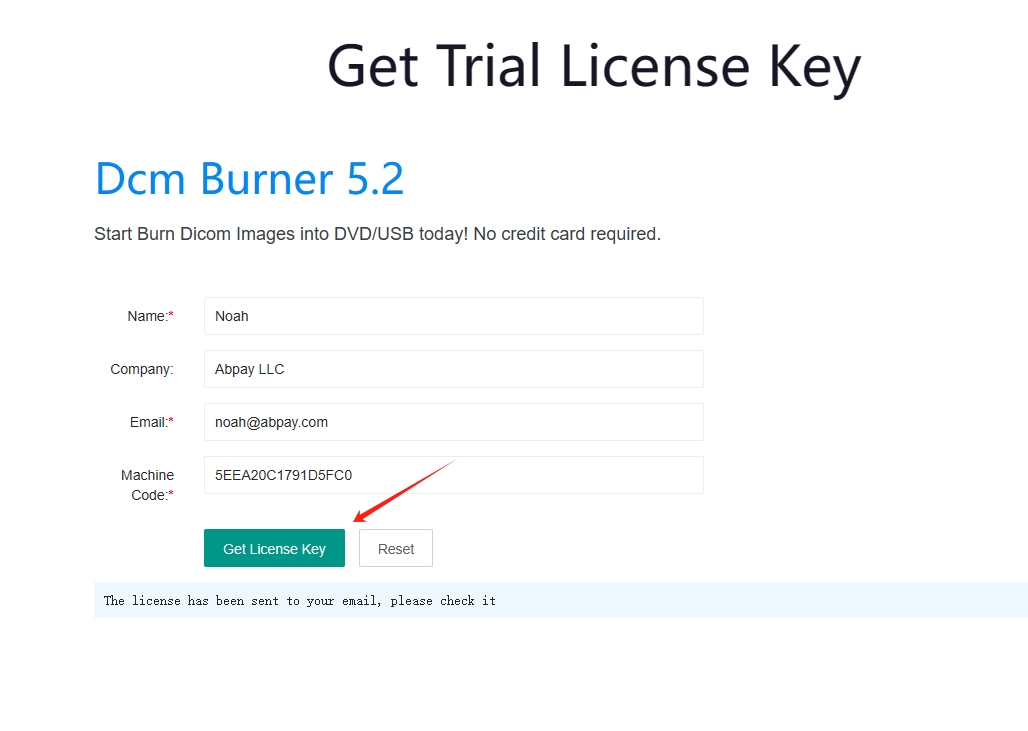
4. Request License Key

Enter your email and other required information, then click the "Get License Key" button.

Get Trial

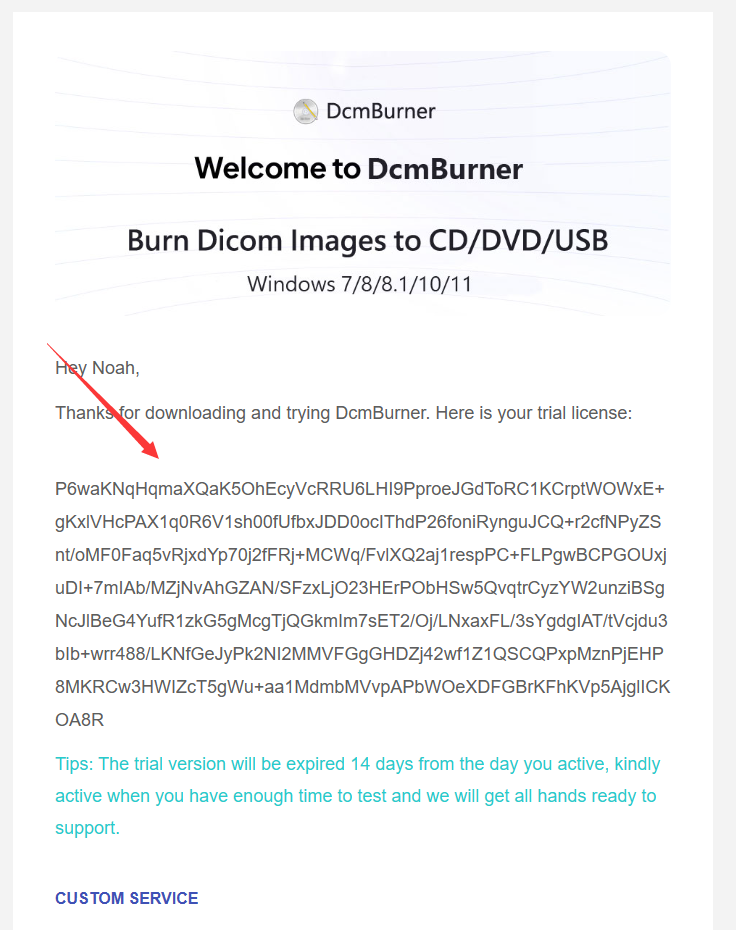
5. Check Your Email

Check your email to receive the activation code.

Receive License

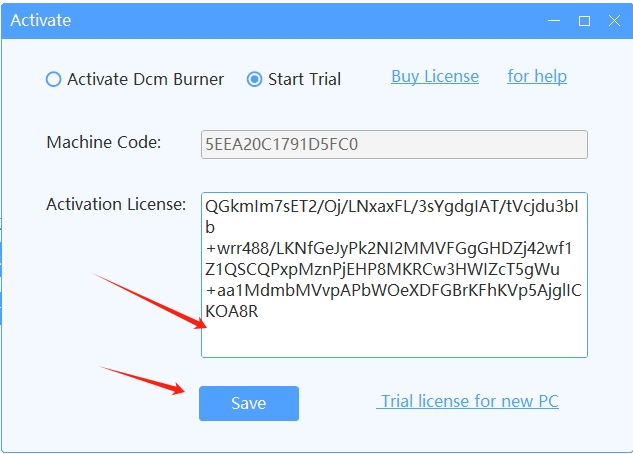
6. Enter Activation Code

Copy the received activation code into the software.

7. Activate Software

Click the activation button to activate the software.

Activate License

Ready to Get Started?

Download DcmBurner now and start your free trial

Download Free Trial